Products / Mail Merge
Office automation
Mail Merge
Send personalized emails from an Excel list, each with its own attachment, through Outlook or Gmail.
Word and Outlook's mail merge can't attach a different file to each email. Mail Merge can. Write your message once with fields like {{First Name}}, point it at your Excel list and a folder of files, and each person gets their own email with their own statement, receipt or certificate attached.
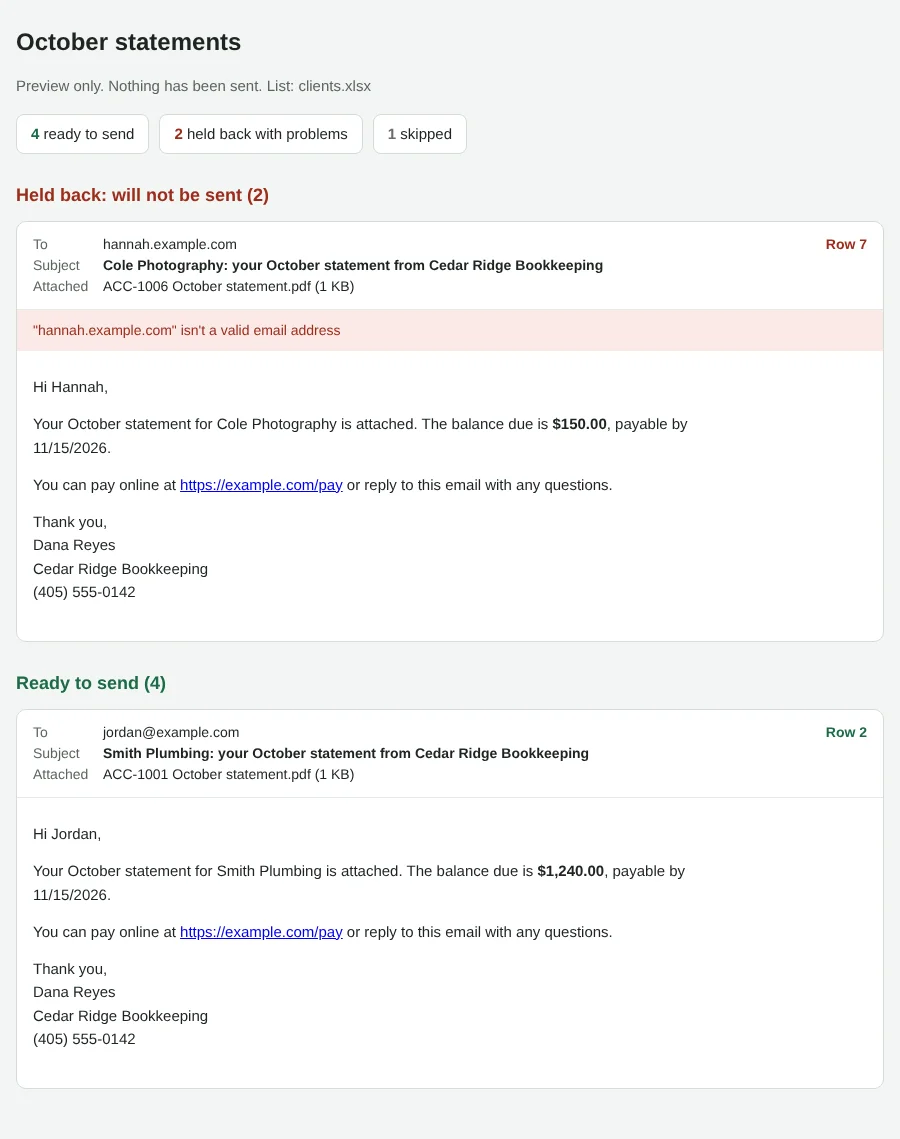
Before anything goes out, it checks every email and shows them all in your browser: misspelled addresses, missing files and oversized attachments are held back and explained. Send a test to yourself, then send to everyone. If a run stops halfway, run it again and only the ones that didn't go out are sent.
Best for: Bookkeepers sending statements, nonprofits and churches sending giving receipts, schools and trainers sending certificates, and any office that emails the same thing to a list with a different file for each person.
Guide: How to Do a Mail Merge with Attachments in Outlook or Gmail
- Windows 10
- Windows 11
- Classic Outlook
- Gmail and Google Workspace
- Other email with SMTP
See what it checks
The preview from the sample statements: every email, with problems held back and explained before anything is sent.
What it does
A different attachment for each person
List file names in a column, or use a pattern like {{Account}}*.pdf to pick each person's file from a folder. Several attachments per email are fine.
Personalized subject and message
Any column can go in the subject or message, with a fallback for blank cells: Hi {{First Name|there}}.
Checks before it sends
Invalid addresses, missing or oversized files and misspelled fields are caught first and held back, with the reason.
Preview, test, then send
See every email in your browser, send a few to yourself marked [TEST], or save them all to Outlook Drafts to review.
Never sends twice
Each email is recorded as it goes. If the run stops, run it again: only the ones that didn't go out are sent.
Outlook or Gmail
Sends from your own classic Outlook with no passwords to store, or through Gmail and other services with an encrypted app password.
Installing takes about 15 minutes
Buy and download
Checkout is handled by Payhip. You get the download link right away, by email too.
Write the message
Type it in Notepad with fields like {{First Name}} where each person's details go.
Check, test, send
Preview every email, send a test to yourself, then send to everyone from a simple menu.
Pricing
Single business
$29 one-time
1 business or organization
- Unlimited lists and emails
- 6 months of updates
- Setup help by email
Consultant
$79 one-time
Up to 10 businesses you serve
- Everything in Single business
- For bookkeepers, IT providers and consultants
- Clients keep using it after handoff
Prices in US dollars. Sales tax or VAT is added at checkout where it applies. See the license and refund policy.
Details
| Runs on | Windows 10 and 11, built-in PowerShell. Mac isn't supported |
|---|---|
| Reads | .xlsx and .csv lists (not old .xls), no Excel needed |
| Sends with | Classic Outlook (or saves to Drafts), or SMTP on port 587 (Gmail, Google Workspace, Zoho and others) |
| Attachments | Any file type, several per email, size limit you set |
| Privacy | Runs on your PC. Lists, files and passwords are never sent to us |
| Includes | Program, double-click menu, sample list and statements, setup guides |
| Updates | 6 months of updates and setup help by email |
Questions
Can't Word or Outlook already do this?
Their mail merge can personalize the message, but it can't attach a different file to each email. That's the gap this fills, along with checking everything before it sends and never sending anyone the same email twice.
Does it work with the new Outlook app?
No. Microsoft's new Outlook app can't be automated by any program. Switch back to classic Outlook (it's a toggle in the corner), or send through Gmail or another email service with SMTP.
How many emails can I send?
As many as your email account allows. Providers limit how many emails an account can send a day; personal Gmail accounts have lower limits than Google Workspace or Microsoft 365. If you hit the limit, run it again the next day and it carries on where it stopped.
Can I use it for newsletters?
It isn't built for that. It has no unsubscribe link or bounce handling, so use it for emails to people you work with: statements, receipts, certificates, reminders and updates.
Is this a subscription?
No. Pay once and keep using the version you bought.
What if it doesn't work on my PC?
Contact us and we'll help. If we can't get it working, you can request a refund within 14 days of purchase.
Something else? Ask us.